A glance, not a watcher
Mac Glance answers ordinary questions: how much disk is free, what is using memory, whether the processor is busy, and which files are taking space. It does that only while you are looking.
On your Mac · local only
A little visibility. Only when you need it.
See drive space, memory, CPU, network traffic, and where your files use storage. Open it, look, and close it. Nothing is uploaded. There is no account, and nothing runs in the background after you leave.
Get it on your Mac How to open it
Older Macs are welcome. One download is enough.
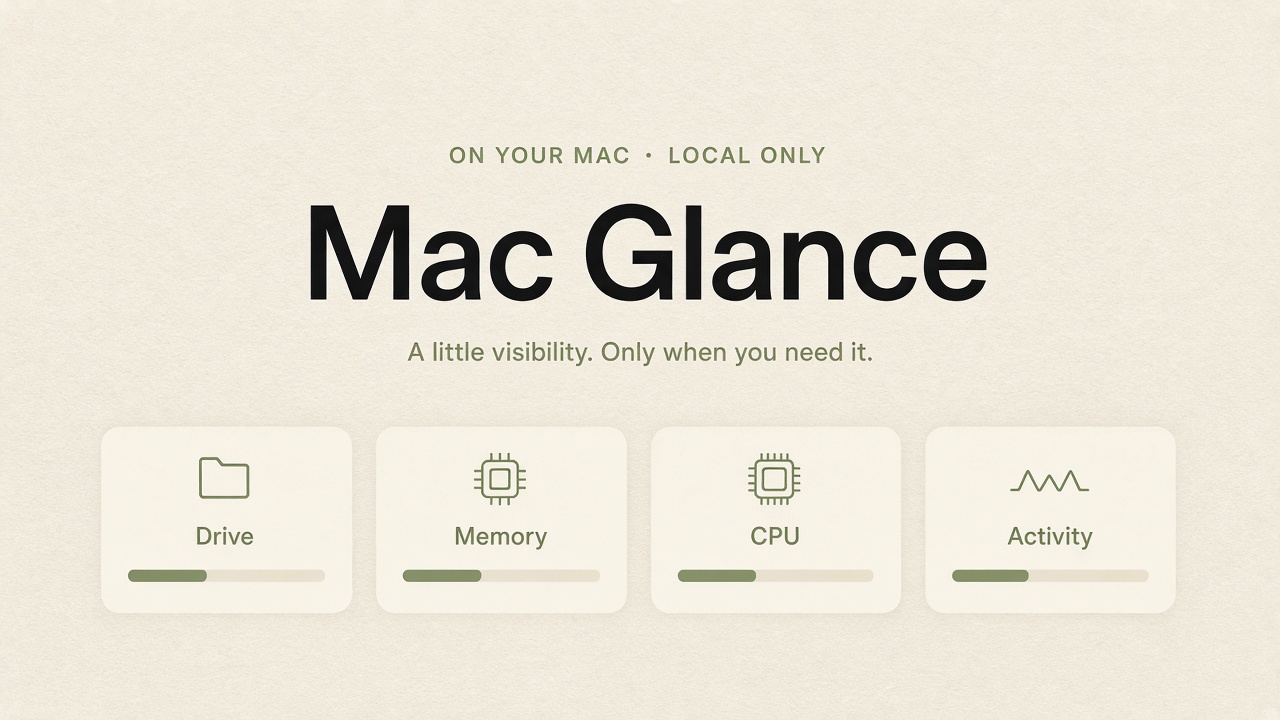
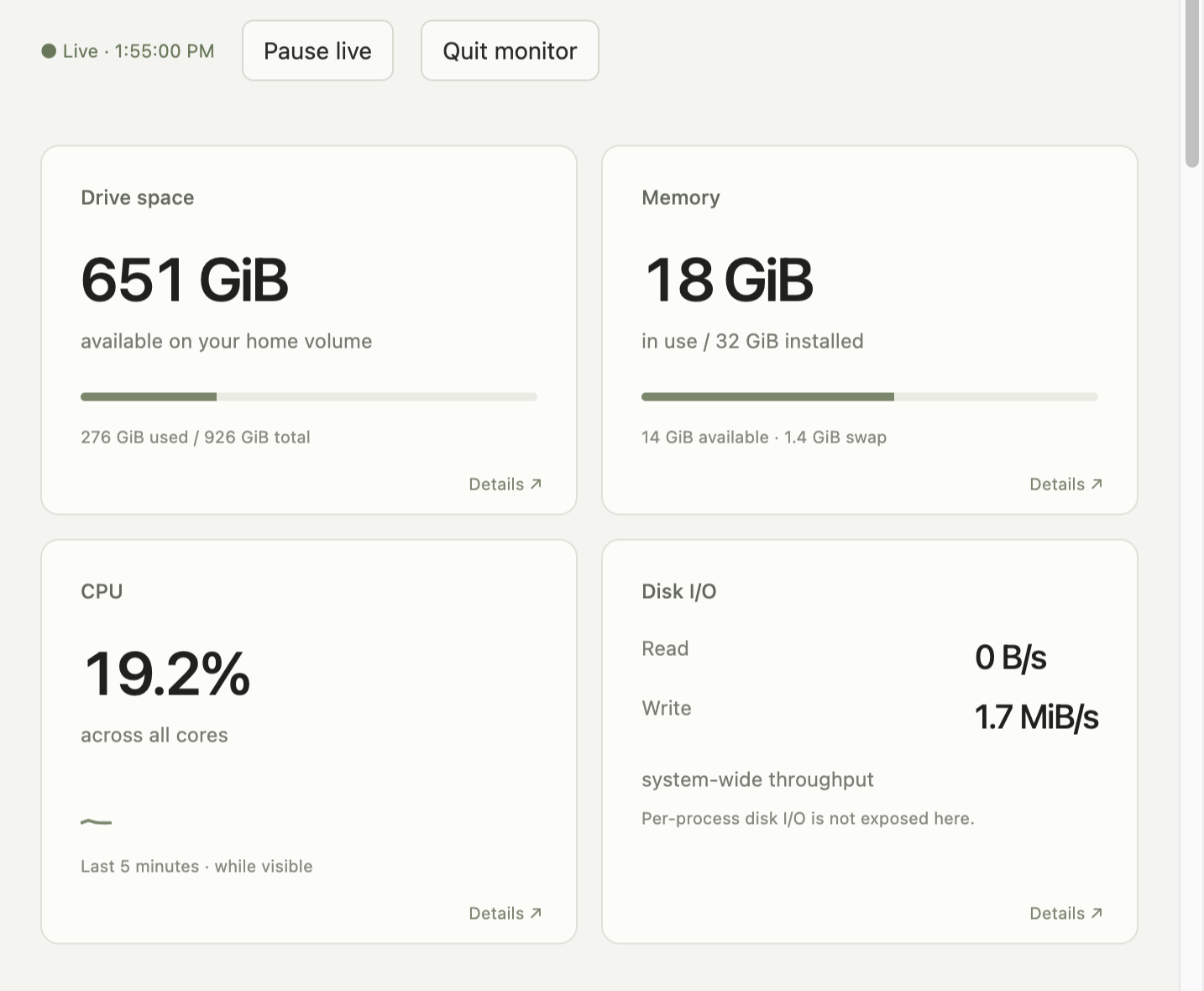
Mac Glance answers ordinary questions: how much disk is free, what is using memory, whether the processor is busy, and which files are taking space. It does that only while you are looking.
The page is served to your own computer. There is no sign-in, no remote font, no analytics, and no cloud copy of your files. A scan of your home folder, if you ask for one, stays beside the app on disk.
It does not install a login item. Hidden tabs pause live readings. Quit the monitor, or close the tab; after a short wait with no page open, the local process exits on its own.
There are two similar names on purpose. Open Mac Glance is the starter. The Mac Glance icon is the app itself. If you click the app icon first, your Mac may say it is damaged. That is not true. Close the warning, go back to the window from the download, and double-click Open Mac Glance.
Drag the Mac Glance icon to Applications if you want to keep it. After it has opened once, you can optionally bookmark computer-dashboard:// for one-click return visits.
Click a number for a short explanation. Question marks open help. Looking around never starts a scan on its own.
127.0.0.1).